
What is Local SEO: How do I set up a Google Business profile?
As a small business owner just starting out it’s easy to feel overwhelmed by everything you have to do. Rest easy because creating a Google Business profile is as easy as setting up a Facebook page and has a greater impact on your business overall.
Creating a business profile allows you to attract local customers searching for businesses like yours. It also allows you to start collecting reviews from satisfied customers and clients. This particular marketing focus is called Local SEO and more can be learned in this article.
Today I’m going to show you how to setup a Google Business profile step by step.
- Navigate to the Google Business Profile website

- Once on the page click on ‘Sign in’
- Now you will be taken to the page below. You will enter the business name you want to create a profile for and then click “Add your business to Google”

- Now you will begin building your business’s profile. Fill out all of the information requested

- If you don’t have a physical store or office location, but serve an area, select ‘No’
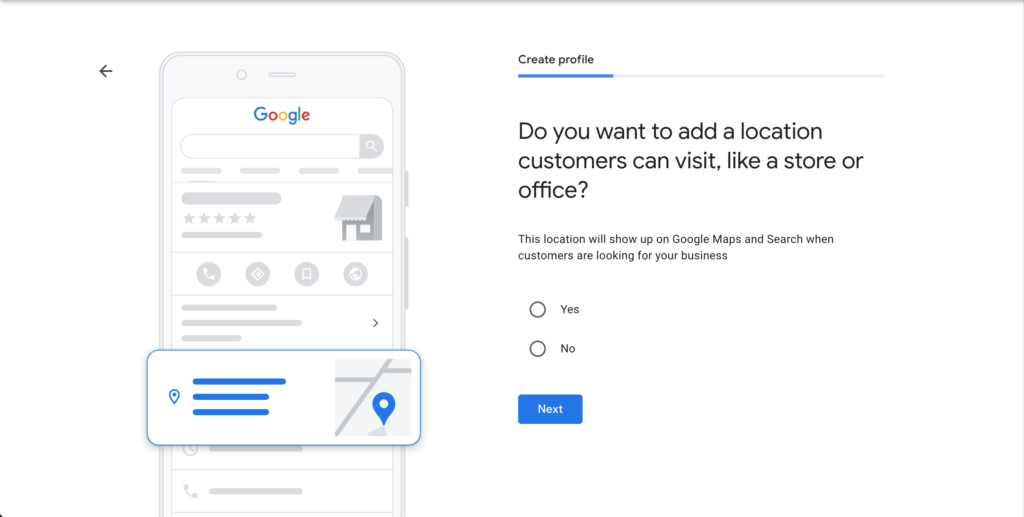
- If you answered ‘No’, then add your service area. You can add multiple locations during this portion

- Now enter your contact information. If you have a contact phone number and website, now is your chance to enter them. Once you input your information click ‘Next’

- Now it’s time to verify your business information. This will be the mailing address for your business. Yes you can use a home or apartment address

- Once your mailing address is entered, now it’s time to verify the phone number you input is legitimate. You will be able to select either Text or Call

- When you receive your code input it then click the ‘Verify’ button

- If you entered the code correctly you should see the following screen

- On the next screen you’ll be able to add your services. Make sure you add all the services you offer as these act as your keywords for your profile and help people find your business profile. Don’t worry, if you forget a service or if you decide to add more, you’ll always have the ability to edit your profile to change any information.

- Next up, you’ll add the hours your business is open. This only pertains to businesses with physical locations and can be skipped if your business isn’t open to the public.
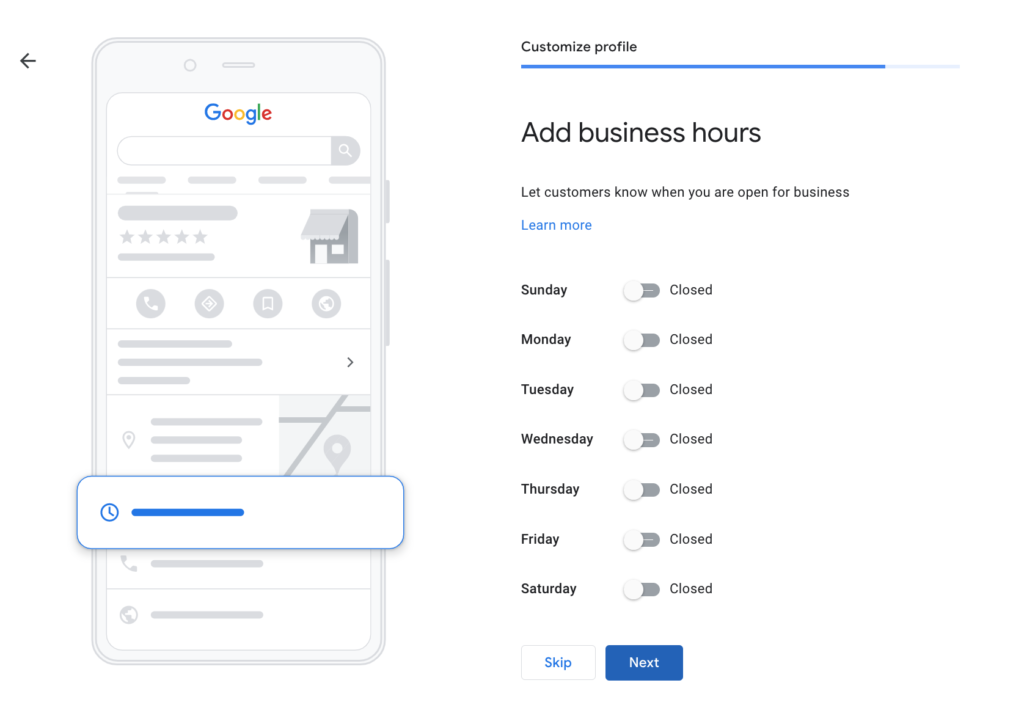
- After you fill in or skip the business hours section you will seen a new page that allows you to toggle accepting or declining customer messaging via your Google Business account. I suggest you leave this on as it allows you to instantly communicate with customers should they have a question. I personally use this feature all the time when I can’t find the information I’m looking for from a particular business.

- Now is the time to add a short description of your business. Remember to include your services, target demographics, and name the area you’re serving.

- Now that you’ve added your business description, it’s important to also add pictures of your product and/or services. Use this screen to do that.
 Now that you have submitted your images you will need to wait on Google to approve your business profile. In some cases they’ll need further verification via a mailed postcard to your mailing address or proof of your business existence. I can touch on this in other articles as these verifications can take some effort.